1
Starting material
Slideshow or timeline editor
Several photos arranged in sequence
AI photo-motion approach
One photo used as the visual starting point
Photo to video
If you are asking, “How can I turn my photos into videos?”, first decide whether you want a sequence of still images or motion within a single image. Mindvideo helps you explore the creative route; the preparation checks below apply whichever tool you choose.
Apple Photos and Google Photos suit simple collections; editors such as iMovie or Clipchamp offer timeline control. An AI-motion tool serves a different goal: making one photograph feel like a moving shot.
Slideshow or timeline editor
Several photos arranged in sequence
AI photo-motion approach
One photo used as the visual starting point
Slideshow or timeline editor
Cuts, transitions, or a pan across a still
AI photo-motion approach
Generated movement within the pictured scene
Slideshow or timeline editor
Trips, events, and chronological stories
AI photo-motion approach
A portrait, product shot, or atmospheric scene
Slideshow or timeline editor
Order, timing, captions, and soundtrack
AI photo-motion approach
Subject motion, camera motion, and visual consistency
Slideshow or timeline editor
Uneven framing between photos
AI photo-motion approach
Changes to faces, objects, or background details
Slideshow or timeline editor
Check pacing and whether every photo is readable
AI photo-motion approach
Inspect individual frames for unwanted changes
These site images illustrate three useful starting points, not verified outputs from your own upload. Match your source photo to the kind of result you want before writing motion instructions for Mindvideo.
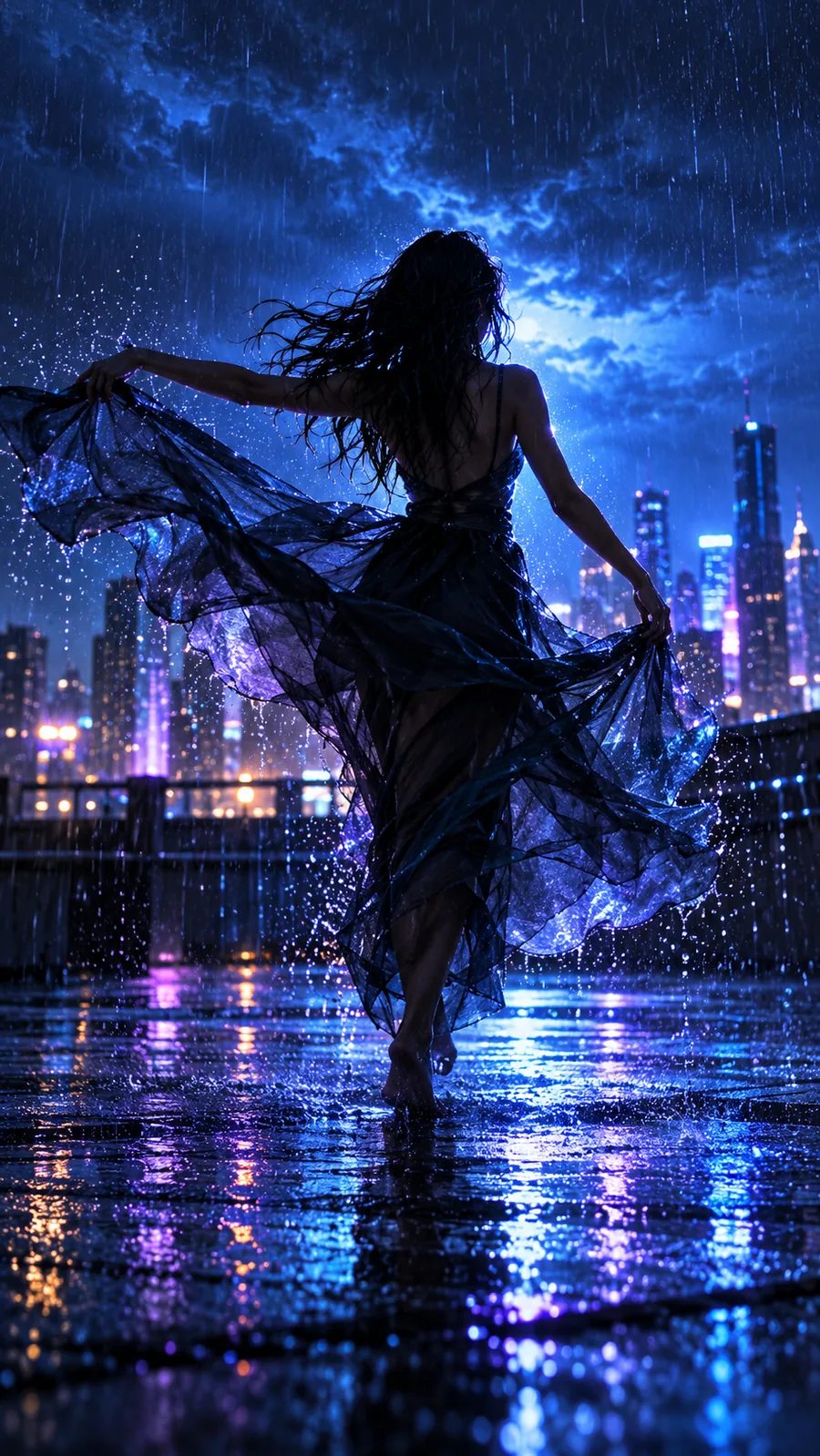 Portrait
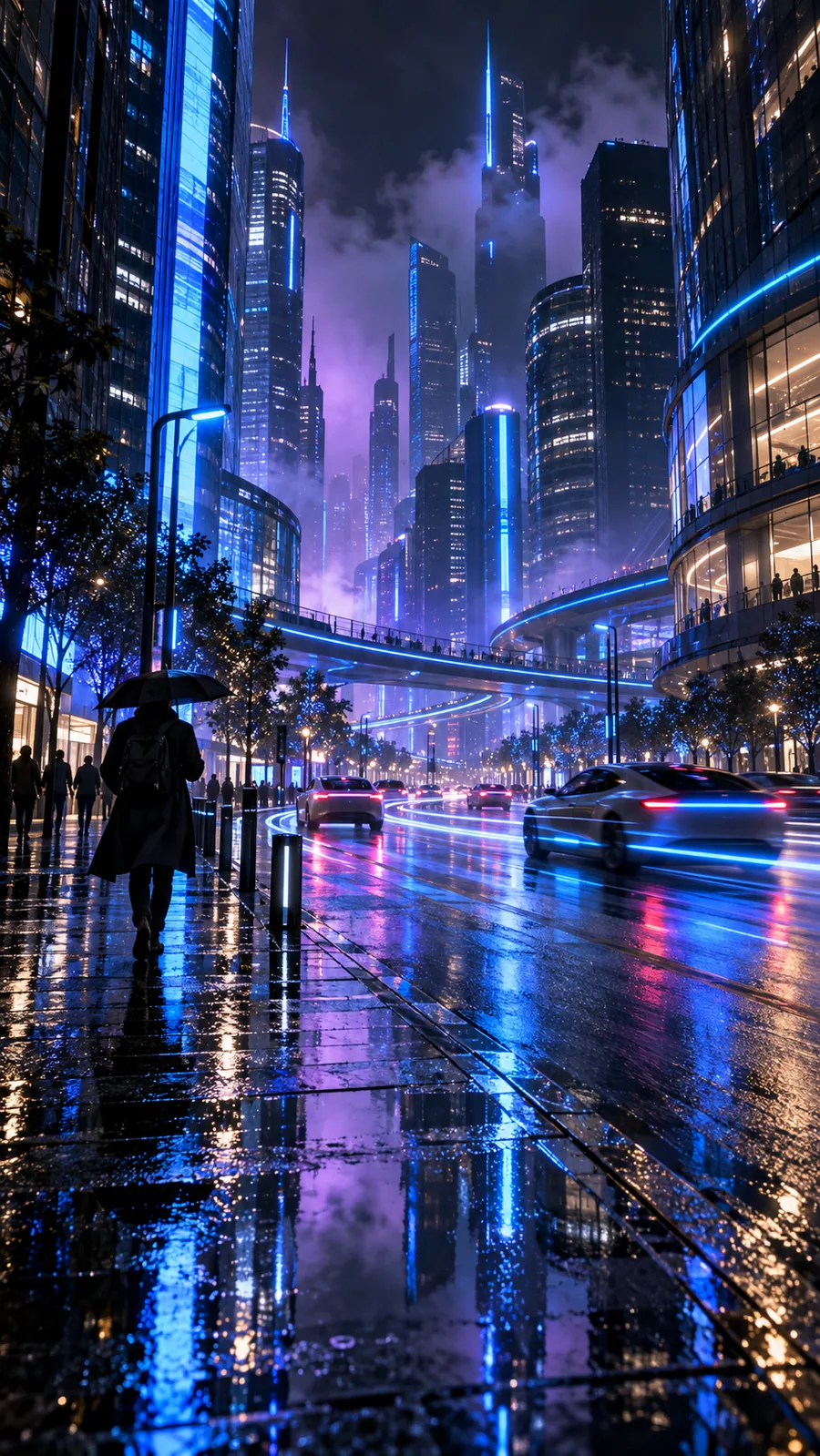 Landscape
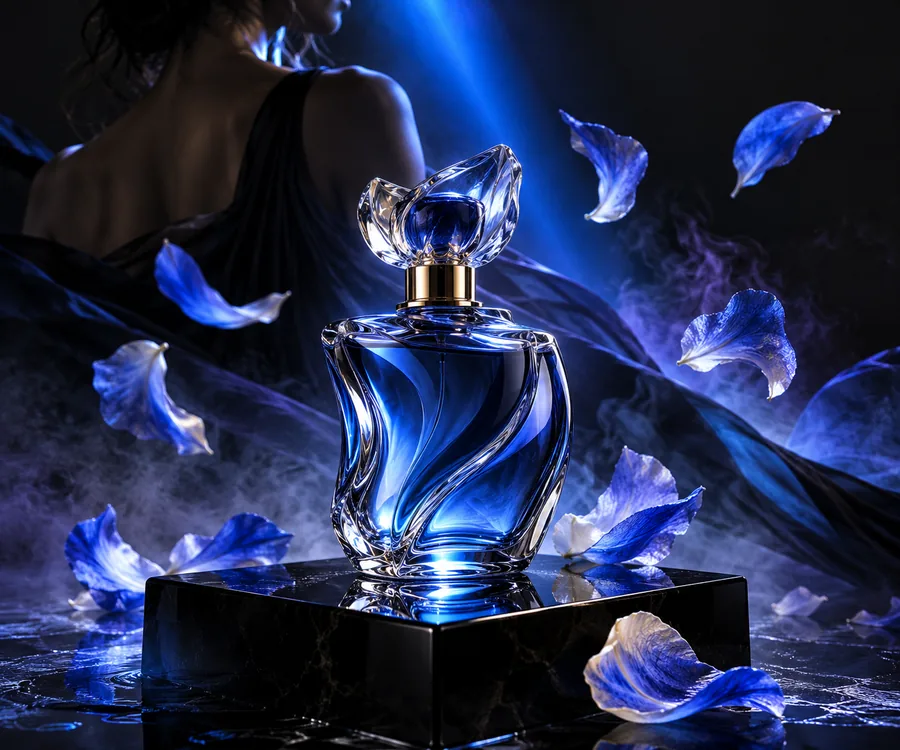 Product
Choose a sharp source, crop it for the intended frame, and keep an untouched copy. Then describe one modest movement and inspect the result before attempting a more complex scene.
Select an image with a clearly visible face and enough space around the head to allow a camera move. Check that you have permission to use the person's likeness.
A restrained motion concept is easier to review for facial changes than a complicated action sequence.
image to video ai freeSort your photos into a beginning, middle, and end before importing them. Decide whether you need several stills in sequence or motion inside one landscape.
A clear shot plan prevents you from using a single-image workflow when a slideshow would tell the story better.
text to videoStart with a clean product image, preserve the original, and describe only the background or camera movement you want.
You can compare the result with the source and reject any clip that alters important product details.
image to video ai freeIf an upload fails, confirm that the file opens normally, then check its format and size against the destination tool's current requirements. If the result looks distorted, try a sharper original with a simpler crop and a less ambitious motion description. Mindvideo can be a starting point for exploring the approach, but review the available upload and export options before committing to a project.
For multiple photos, arrange them in a slideshow or timeline editor, set the duration of each image, and add transitions if they help the story. To create apparent movement within one photo, explore an image-to-video workflow and describe the motion you want. Check the resulting clip before sharing it.
No. A single photo can be the starting point for an animated shot, while a slideshow usually uses several images. The better choice depends on whether you want motion within a scene or a sequence of memories.
Choose a sharp image with a clear subject and some space around it. A simple background makes it easier to spot unintended changes. Keep the original file so you can compare it with the resulting video.
Generated motion may change details while filling in parts of a scene that were not visible in the still image. Try a smaller camera move or simpler subject action, then inspect faces, lettering, and important objects. If those details must remain exact, a slideshow-style pan across the original photo may be more suitable.