Mindvideo

Written prompts

Make text to video work from a clear scene idea

A text to video prompt gives a video tool a scene to interpret, not a finished shot list. Start with one subject, one action, and a setting you can recognize in the result.

Review the result before using it
Mindvideo landing visual showing a creative video scene

Choose the starting point that fits your idea

A written brief and an existing image solve different problems. Pick the input that already contains the details you most need to preserve.

Scriptwriter

You have a scene description but no approved visual reference.

Draft the action and camera direction in words. If a reference image becomes available, image to video ai free is a route to investigate for starting from that visual.

image to video ai free
Photographer

You want a recognizable subject from an existing photograph.

Keep the photo as the starting point rather than asking a prompt to recreate it. How can I turn my photos into videos? covers that photo-led workflow.

How can I turn my photos into videos?

Campaign planner

You are exploring several settings before committing to an image.

Describe each setting separately and compare the results. For a campaign built around an approved still, image to video ai free addresses the different input decision.

image to video ai free

Family storyteller

A particular person or place must remain recognizable.

Begin with the original picture when identity matters. How can I turn my photos into videos? explains how to approach that choice.

How can I turn my photos into videos?

A/B structural difference table

The input determines what the tool has to invent and what it can use as a visual reference.

Written prompt Existing image
1

Starting material

Written prompt

A description of a proposed scene

Existing image

A visible scene or subject

2

Subject appearance

Written prompt

Interpreted from words

Existing image

Referenced from the supplied image

3

Composition

Written prompt

Must be described or inferred

Existing image

Begins with the image framing

4

Motion

Written prompt

Described in the prompt

Existing image

Requested for an existing subject

5

Best early check

Written prompt

Does the scene match the brief?

Existing image

Does the subject remain recognizable?

6

Useful when

Written prompt

You are exploring a new visual idea

Existing image

You need to build on a chosen still

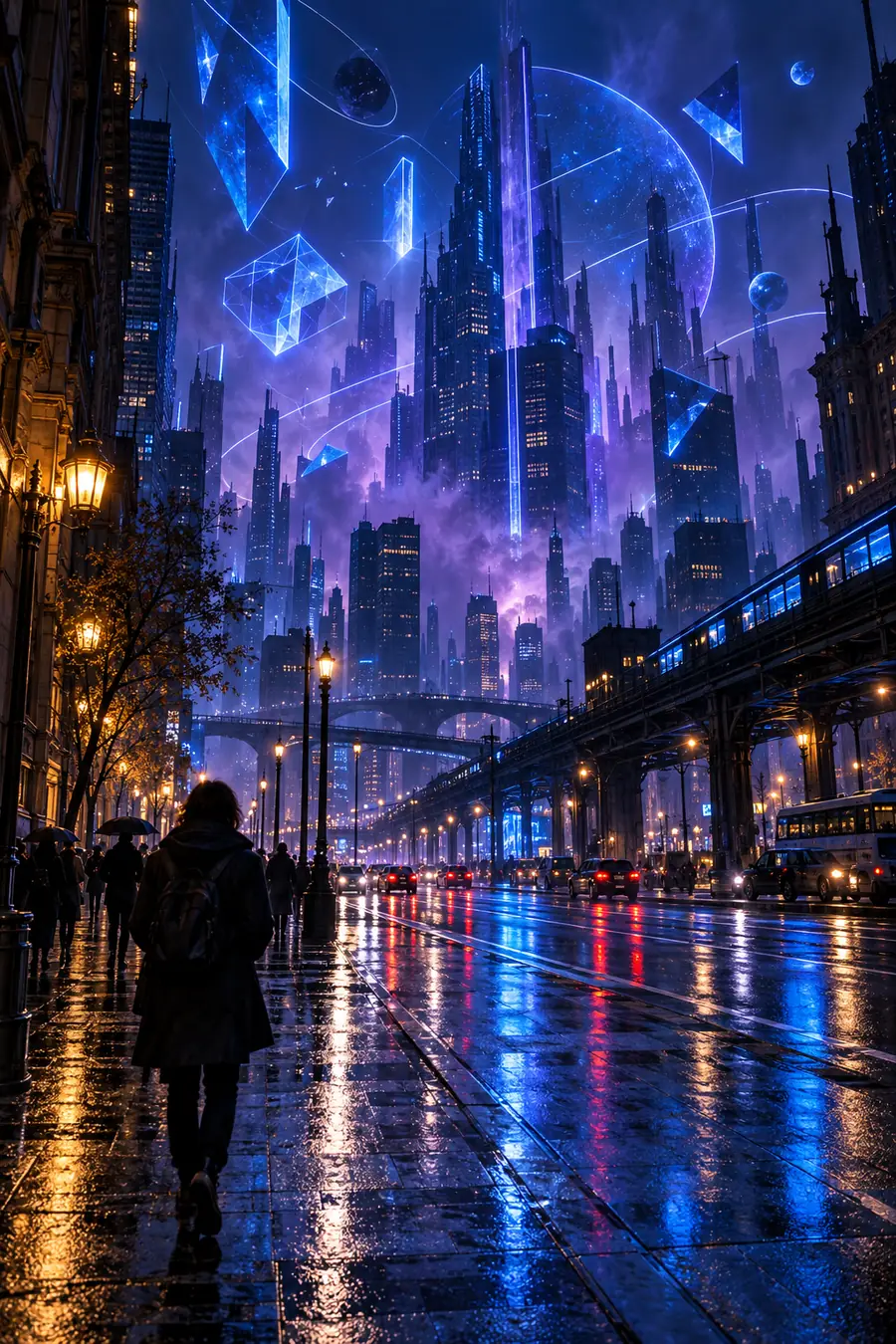
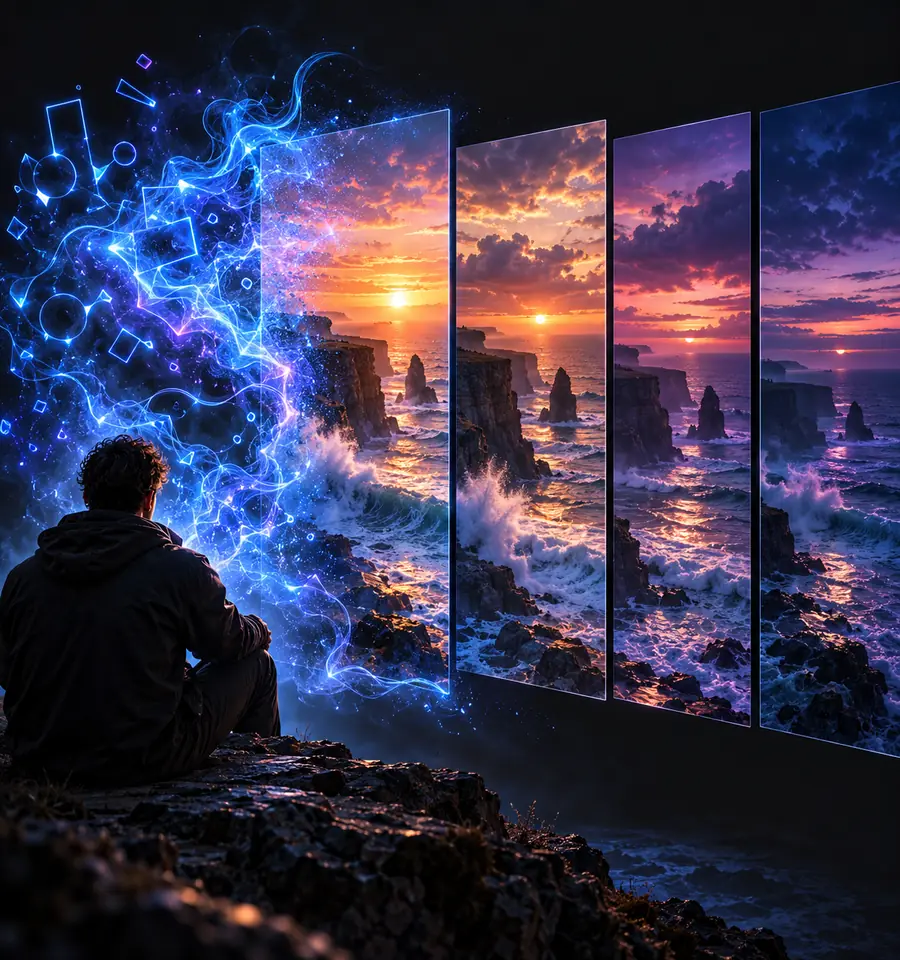
Illustrative city scene representing a visual idea before interpretation Illustrative video creation image representing an interpreted scene

What conversion loses

Words leave room for interpretation. A description may communicate the mood while leaving the exact face, layout, or movement unresolved.

  • Starting idea
  • Interpreted result

Illustrative comparison, not matched frames from a documented generation. Use the divider to inspect visual differences, not to judge tool accuracy.

The tool block: write, create, inspect

Treat the first result as a draft. A compact prompt makes it easier to identify which part of the scene needs revision.

Write one visible action

Name the subject, setting, and action. Add a camera position or lighting cue only when it matters to your idea.

Send the prompt

Use the prompt box to hand your description to the linked video tool. Available controls and output options depend on that destination.

Compare with your brief

Watch for the subject, action, and framing you requested. Change one instruction at a time if the result misses an essential detail.

How to verify after generation

Check the entire clip, not just its most appealing frame. These limits matter when a scene needs to communicate something specific.

A prompt cannot guarantee exact identity

A written description may produce a plausible person without preserving the appearance of a real one.

WorkaroundUse an appropriate visual reference when recognizable identity is essential, and check permission to use it.

A good still does not prove consistent motion

Hands, objects, backgrounds, or camera movement may change unexpectedly between frames.

WorkaroundWatch the full clip at normal speed and inspect any transition that looks unclear.

Visible words may need separate review

Signs, labels, or other text inside a generated scene may not say what you intended.

WorkaroundVerify every readable claim before publishing; add critical wording in a separate editing step if needed.

Turn a focused brief into a first draft

Test the scene you can describe clearly

Begin with a single subject and action, then review the video against your original brief. Keep the parts that work and revise the instruction that did not.

  • Describe one scene
  • Inspect the full result
  • Revise a specific detail

Text-to-video FAQ

Start with a subject, a visible action, and a setting. Add a camera angle or lighting direction if it helps distinguish your idea, but keep the first attempt focused enough to review.

A written-prompt workflow starts with a description rather than an uploaded still. If the exact appearance of a person or object matters, an image-led workflow may be a better starting point.

A prompt cannot specify every visual detail, so the tool must interpret what you leave open. Identify the most important mismatch and describe it more precisely in your next attempt.

Watch it from beginning to end for continuity, recognizable subjects, and readable words. Also check that you have permission to use any referenced likeness, brand, or source material.

Start creating
Start creating